


Roku Tv Remote Control
3.8221.00 Reviews
App Specs
- Version
- 7.4
- Updated On
- License
- Free
- Downloads
- 1,000,000+
- Developer
- Attractive Apps Valley
- Categories
- Tools
- Platform
- Android
Screenshots
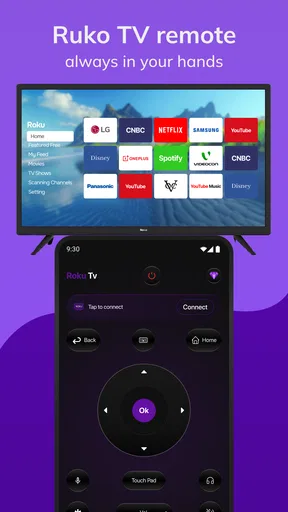
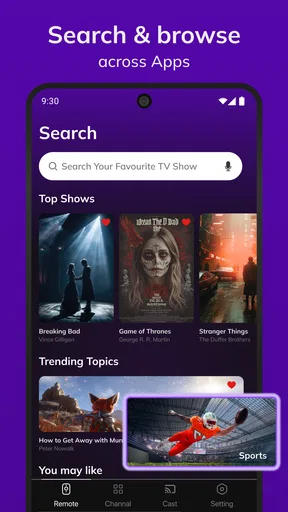
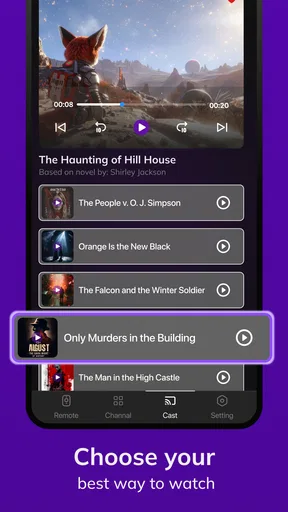
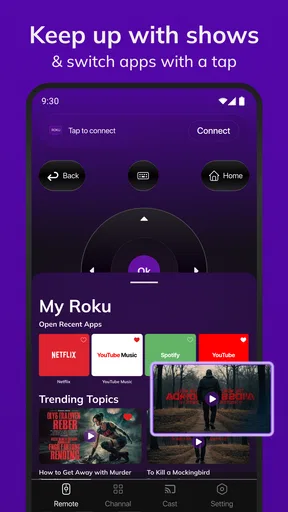
 Analysis by AppCompare
I often think a phone-based remote is most useful when it solves a small problem without creating a new one. Roku Tv Remote Control aims to do exactly that: it turns an Android phone into a controller for a Roku TV, so you have another way to navigate when the physical remote is misplaced, out of reach, or simply inconvenient. I tested it with that practical mindset rather than expecting it to replace every remote in the house.
It is a free tools app from Attractive Apps Valley, listed for Everyone and supported by optional in-app purchases ranging from $8.99 to $39.99 per item. The app reached version 7.4 after its release on June 23, 2025, and it requires Android 7.0 or newer. Those details matter because this is not a demanding entertainment app; compatibility and connection behavior are more important than graphics or processing power.
My overall impression is fairly positive, with an important qualification: the experience depends heavily on the Roku TV and the local network. When the phone and television are ready to communicate, the basic remote experience feels straightforward. When the connection is not available, no amount of tapping inside the app can compensate. That makes this a useful backup tool, but not automatically a perfect replacement for the original remote.
How quickly the remote gets you moving
The first thing I look for in a remote app is not a long feature list. I want to open it, understand what to press, and reach the television controls without unnecessary confusion. This app benefits from having a narrow purpose. Its role is clear from the moment you use it: connect the phone to a Roku TV, then use the on-screen controls for everyday navigation.
In a good setup, the perceived speed is mostly determined by how quickly the connection is established and how promptly the Roku responds. Once the link is working, simple actions such as moving through menus or selecting an item should feel more natural than repeatedly searching for a missing remote. The phone also gives you a familiar touchscreen surface, which can be more comfortable for someone who already spends much of the day using Android.
There is a useful distinction between app speed and television response. If a button does not produce an immediate result, the cause may be the wireless connection, the Roku itself, or the app’s communication with it. I would not judge the entire tool by one delayed command. Instead, I pay attention to whether the delay is occasional or whether every press feels uncertain. A remote app is only pleasant when the feedback is consistent enough to build confidence.
One practical tip is to open the app before you actually need it. If you wait until the television is already playing and the physical remote has disappeared, you may be trying to solve two problems at once: locating the correct device and learning the controls. A quick setup while everything is calm makes the app much more useful during a real interruption.
Worth Reading Before You Choose

EA SPORTS FC Mobile 26 Is a Bigger Football Game, but It Takes Time

Flipboard Shows What News Apps Must Do Beyond the Feed

Switching to Android Auto Means Rethinking Your Driving Routine

Google Calendar Makes a Crowded Week Easier to Manage

Ludo King Makes the Most of the Minutes Between Plans

Baby Panda World Brings Quick Play to Modern Phones, but Its Game Library Feels Busy
What everyday navigation feels like
For ordinary use, a phone remote is particularly convenient when the television is across the room and your phone is already in your hand. I can imagine using it while checking a message, pausing something during a snack break, or changing the volume without getting up. It is also handy in a shared room where the physical remote has been taken by someone else.
The touchscreen approach has a trade-off. A physical remote offers tactile buttons, so you can often operate it without looking. A phone screen does not provide the same physical certainty. If you are navigating in a dark room, you may need to glance down more often, and that can be less comfortable than pressing familiar buttons by touch. For users with limited dexterity, the larger, flexible surface of a phone may help; for others, the lack of tactile feedback will be the main annoyance.
I also recommend keeping the phone awake during the initial connection and avoiding unnecessary switching between apps until the remote is ready. This is not a special feature of the application, but it is a sensible workflow for any phone-based controller. The fewer interruptions during setup, the easier it is to tell whether the app is responding normally.
Where heavier use can expose friction
A short session is the easiest test for a remote app. The more revealing situation is repeated use: browsing for a while, moving quickly through menus, pausing and resuming content, and returning to the app after doing something else on the phone. These moments place more emphasis on stability than on raw speed.
During heavier use, I would watch for three things. First, do commands continue to register after many taps, or do they become inconsistent? Second, does returning to the app restore the remote cleanly, or do you need to reconnect? Third, does the phone remain comfortable to use, or does the app feel like unnecessary background weight for such a simple job?
This is where expectations should remain realistic. The app is a remote utility, not a large media platform, so I would expect modest resource demands in normal use. Still, the actual feel can vary between older and newer Android phones. A device running Android 7.0 meets the stated minimum, but that does not mean every older handset will feel equally responsive under all conditions. Newer hardware is more likely to provide a smoother overall experience, especially if you are switching between the remote and other apps.
My best advice for extended use is to treat the phone as a dedicated controller while watching something important. Keep it charged, avoid locking the screen between every command, and close applications that are causing unrelated slowdowns. These steps do not improve the Roku’s network connection, but they reduce avoidable phone-side friction.
There is another trade-off that is easy to overlook: a phone remote competes with the phone itself. If you need the handset for a call, navigation, work, or a game, the television controller becomes less convenient. The original remote does one job without taking over your personal device. That is why I see this app as strongest when the phone is available and the physical remote is not, rather than as a permanent replacement for everyone.
Stability and sensible recovery steps
Reliability matters more than a flashy interface here. A remote that connects once but fails unpredictably is frustrating, especially when it is the only way you can control the television. The app’s broad adoption suggests that many people are using it as a practical solution, although the average rating of 3.9 shows that the experience is not universally smooth.
That rating is useful context rather than a reason to dismiss the app. Remote tools are unusually sensitive to home-network conditions, television settings, phone state, and device compatibility. Two people can install the same application and have very different results because their Roku televisions are not in the same network environment.
If the app does not connect, I would follow a simple recovery order instead of repeatedly tapping the same control. First, check that the phone and Roku are using the same local network. Next, confirm that the television is powered and responsive through whatever method is currently available. Then close and reopen the app, and try the connection again. If the phone has recently changed networks, reconnecting it to the expected one is more useful than reinstalling immediately.
If commands stop working after the app was previously connected, I would also check whether the phone has moved from home Wi-Fi to mobile data or another wireless network. This is one of the most common explanations for a remote that appears to have suddenly failed. Restarting the phone or television can be a reasonable later step, but I would not begin there because it takes longer and may interrupt other people’s viewing.
Recovery is especially important for guests, older family members, or anyone who does not want to troubleshoot network details. In those situations, I would set the app up in advance and leave a short note explaining which phone to use and which network must be active. That turns it from an emergency download into a dependable backup.
Compatibility, Android limits, and purchase expectations
The stated minimum is Android 7.0, so the app is accessible to a wide range of Android phones. Even so, meeting the operating-system requirement is only the first part of compatibility. The television must be a Roku TV that the app can reach through the local connection, and the phone must be able to communicate with it. A supported Android version cannot solve a network mismatch.
This is also why I would not recommend installing it as the only control method before checking that it works in your home. If your physical remote is still available, use it during setup and test the app while the television is idle. That gives you a fallback if the connection process needs attention.
The app itself is free to download, which makes testing less risky. Optional purchases are available at the listed prices, from $8.99 to $39.99 per item. I would avoid paying for anything until the basic connection and navigation work reliably for your specific television. A paid option cannot make an incompatible network arrangement compatible, so the free starting point is the sensible part of the offer.
The Everyone content rating also fits the app’s purpose. It is a household utility rather than a game or social service, and its usefulness is easy to understand for adults, teenagers, and families sharing a Roku TV. I would still make sure the person using it understands that the phone is acting as a controller, not magically changing the television’s underlying capabilities.
How it compares with the usual alternatives
The obvious alternative is the original Roku remote. That remains better for tactile control, immediate availability beside the television, and use without occupying a phone. If you still have the original and its buttons are working, I would keep it as the primary option. A phone app is most valuable when the physical remote is missing, damaged, misplaced, or being used elsewhere.
Another alternative is a general universal remote app. That can make more sense in a home with several television brands or multiple types of equipment. However, broader compatibility often means a more complicated interface. This app’s Roku focus is an advantage if your main problem is controlling one Roku TV and you do not need a controller for unrelated devices.
There is also the possibility of using a different official or manufacturer-supported approach when one is available for your setup. I would favor an option that integrates cleanly with the television and has a connection process you already trust. The reason to choose this app instead would be convenience, availability, or a preference for its particular remote layout—not the assumption that every third-party controller will behave identically.
Voice control and smart-home routines are different alternatives again. They can be excellent for a few repeated actions, but they are not always as precise for browsing menus or selecting among several items. A touchscreen remote gives you direct navigation, which is why I find it more practical for ordinary browsing than relying only on spoken commands.
Who will get the most from it
I would recommend this app to someone who frequently misplaces the Roku remote, keeps a phone nearby while watching television, or wants a backup controller for a shared living room. It also suits households where one person wants to pause or adjust playback without asking someone else to hand over the physical remote.
It can be especially useful during a move, in a guest room, or after replacing batteries at an inconvenient time. The realistic scenario is simple: you sit down, discover the remote is under a cushion or in another room, and use the phone already beside you instead of interrupting the evening. That is not a dramatic feature, but it is exactly the kind of small convenience that makes a utility app earn its place.
I would be more cautious about recommending it to someone who dislikes using a phone while watching television, needs blind tactile operation, or has an unreliable home network. It is also not the right first choice if you need one remote to manage several unrelated brands and devices. In those cases, the original remote, a broader universal solution, or a different compatible option may be less frustrating.
My performance verdict after weighing the trade-offs
Roku Tv Remote Control is a sensible Android backup for Roku TV owners, provided the local connection is suitable. Its strongest quality is practical convenience: it gives you a familiar device to use when the dedicated remote is unavailable. The free entry point makes it easy to test, and the focused purpose keeps the concept understandable.
I would describe its speed as potentially quick in a healthy setup, but not something the app can guarantee by itself. Stability is similarly conditional. When the phone, network, and television cooperate, the experience should feel much less troublesome than searching the house for a remote. When they do not, recovery depends on checking the connection and restarting the right part of the setup rather than simply pressing harder.
Attractive Apps Valley has produced a tool that makes sense for a very specific need, and the app’s million-plus installs show that this need is common. The 2.2K ratings and 220 reviews also indicate an established user base, while the less-than-perfect average reminds me to keep expectations grounded. I would install it as a backup, test it before an emergency, and delay any optional purchase until I know it works well with my Roku TV.
My recommendation is straightforward: try it if you want a phone-based Roku controller and your Android device meets the requirement. Keep the physical remote if you value tactile buttons, and choose another category of solution if you need broad equipment control. For the right household, this app is a useful safety net rather than a universal answer—and that is enough to make it worthwhile.
Pros
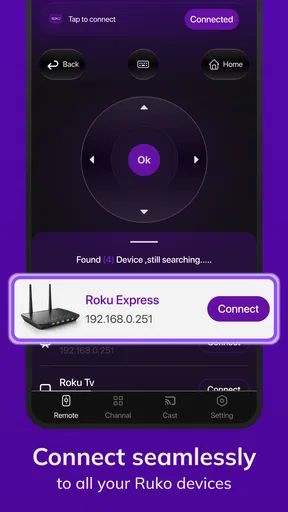
- Simple setup with automatic detection of compatible Roku devices.
- Private listening works with headphones on supported mobile devices.
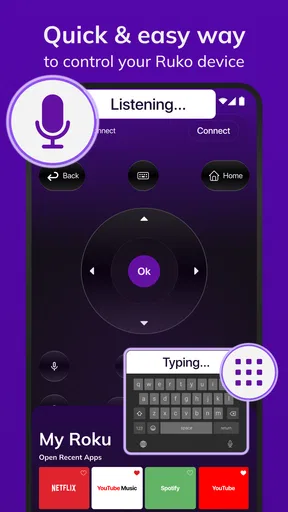
- Keyboard input makes searching for movies and shows much faster.
- Supports switching between multiple Roku devices on the same network.
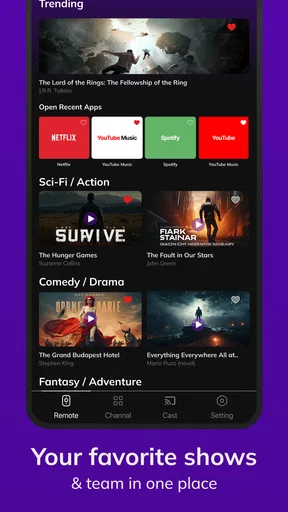
- Includes quick access to installed channels and streaming shortcuts.
Cons
- Requires the phone and Roku device to use the same Wi-Fi network.
- Some features may be unavailable on older Roku models.
- Private listening can drain the phone battery quickly during long sessions.
- Ads or promotional content may appear within the remote app interface.
- Connection can drop when Wi-Fi coverage is weak or unstable.
FAQs for Roku Tv Remote Control
What is Roku TV Remote Control, and how does it work?
Roku TV Remote Control is a mobile application designed to control compatible Roku TVs and Roku streaming devices from an Android or iOS smartphone. After installing it, your phone generally needs to be connected to the same Wi-Fi network as the Roku device. Once detected, the app can provide virtual navigation buttons, playback controls, volume adjustment, channel access, and keyboard input.
Is Roku TV Remote Control compatible with every Roku device?
Compatibility depends on the specific app version, your Roku TV or streaming player model, and the operating system of your phone. Most modern Roku TVs and network-connected Roku players are supported, but older devices, guest-mode configurations, or unsupported regional models may not work correctly. Check the app’s store listing and Roku device settings before downloading.
Does the app require Wi-Fi, Bluetooth, or an internet connection?
Most Roku remote-control apps communicate with the television through the local Wi-Fi network rather than Bluetooth or infrared. Your smartphone and Roku device normally must be connected to the same network for pairing and control. Internet access may be required for downloading the app, streaming-related features, or advertisements, while basic remote functions can often work over the local network.
Can I use Roku TV Remote Control if I have lost the original remote?
Yes, the app can be useful when the physical Roku remote is missing, damaged, or out of batteries, provided the Roku device is already connected to a Wi-Fi network that your phone can join. If the television is not connected to Wi-Fi or has been moved to a different network, initial setup may require the original remote or another compatible method.
Is Roku TV Remote Control free and safe to use?
Many Roku remote applications can be downloaded for free, but some include advertising, optional subscriptions, or in-app purchases for extra features. Before installing, review the developer name, permissions, privacy policy, ratings, and recent user feedback in the official app store. Avoid unofficial downloads from unknown websites, and remember that the app should not require unnecessary access to personal data.


